Email setup guide
Configuring Thunderbird Mail Setup
Step 1: Open the Thunderbird application.
NOTE: If this is the first time opening of Thunderbird Mail you will be directed to the new account wizard. Otherwise go to step 3.
NOTE: If this is the first time opening of Thunderbird Mail you will be directed to the new account wizard. Otherwise go to step 3.
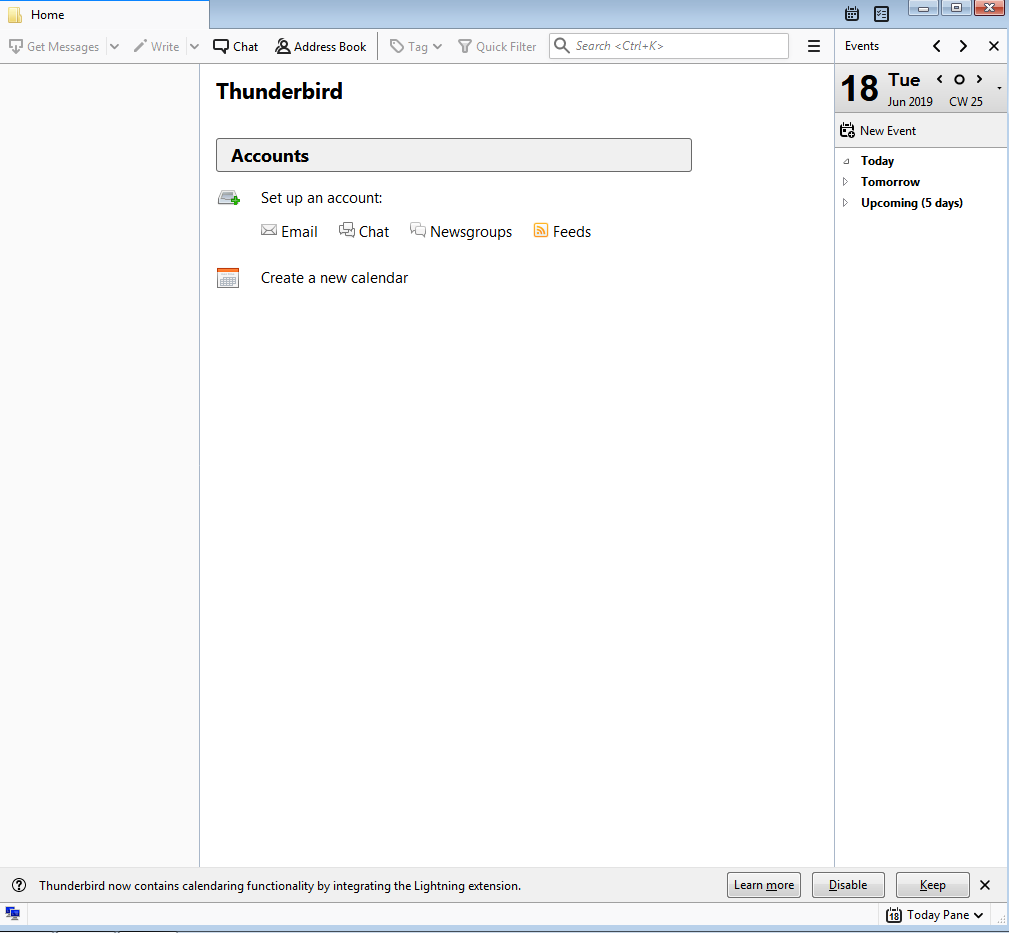
Step 2: Under the heading “Set up an account” click “Email”
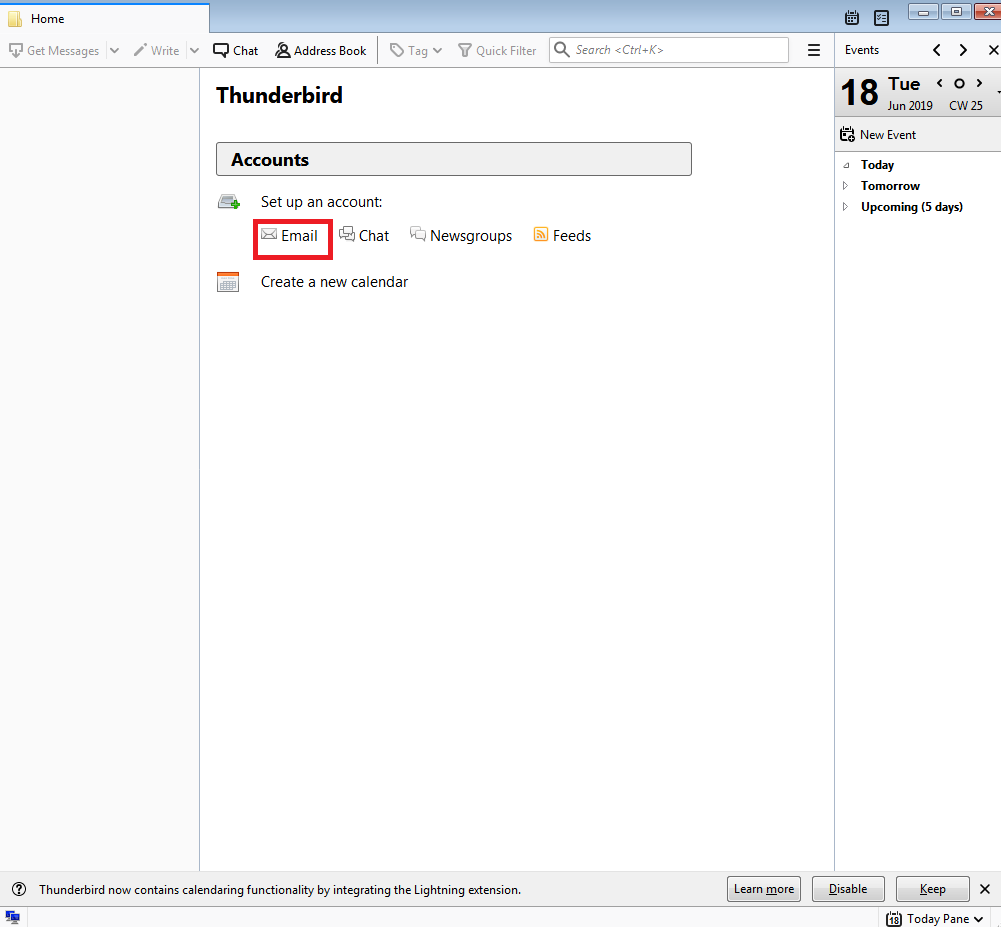
Step 3: Alternatively you can navigate to the setup wizard by opening the menu, navigating to “Options/Preferences” and selecting “Account Settings”
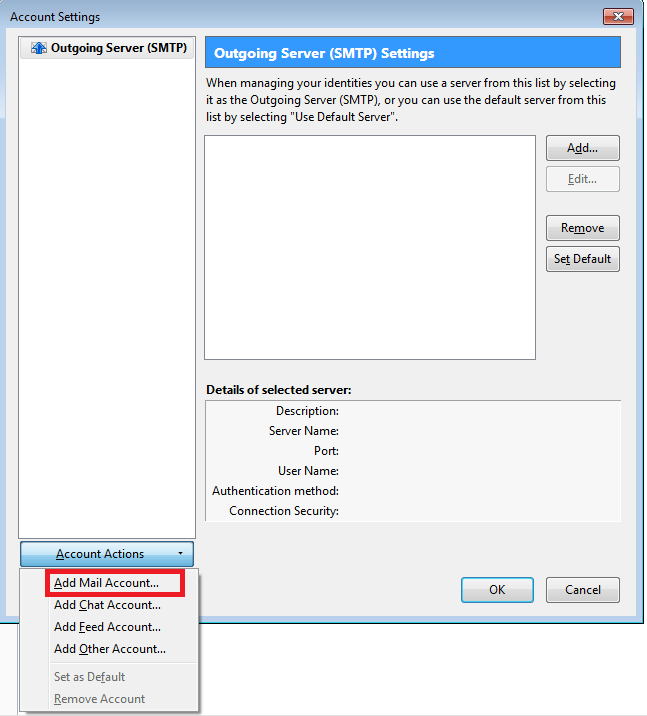
Step 4: Click the “Account Actions” drop down menu, and select “Add Mail Account”
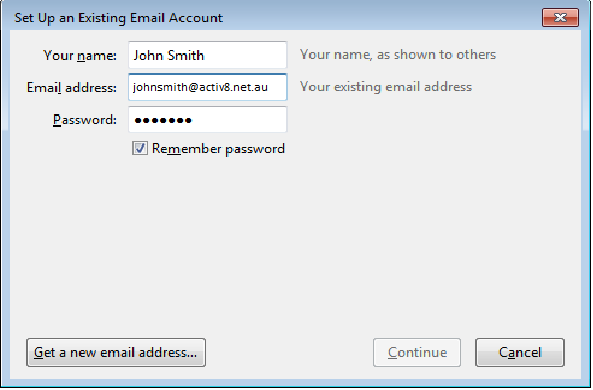
Step 5: Complete Form with the following information
User Information
Your Name: {First name and Surname}
E-mail Address: {Your activ8me E-mail address}
Password: Provided by activ8me
(To change password Click Here)
User Information
Your Name: {First name and Surname}
E-mail Address: {Your activ8me E-mail address}
Password: Provided by activ8me
(To change password Click Here)
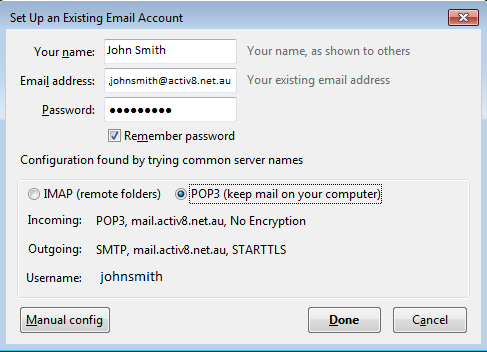
Step 6: Choose POP3 and select “Manual Config”
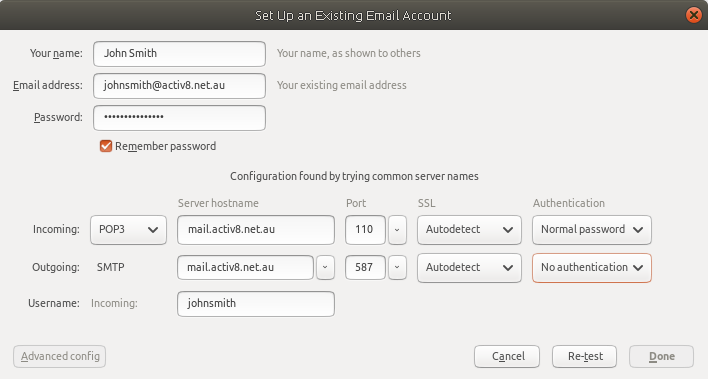
Step 7: Within the manual configuration dialog box,
- ensure that the “Server hostnames” for both Incoming and outgoing set to mail.activ8.net.au,
- then configure the incoming port to 110 and the outgoing port to 587
- SSL drop down boxes should both be set to “Autodetect”
- Incoming Authentication drop down box should be set to “Normal password”
- Outgoing Authentication drop down box shoudl be set to “No authentication”
Click “Re-test” to continue
(As per example screenshot)
Step 8: If all steps were completed correctly you will now notice that the “Done” button is now active and clickable.
Click “Done”.
Click “Done”.
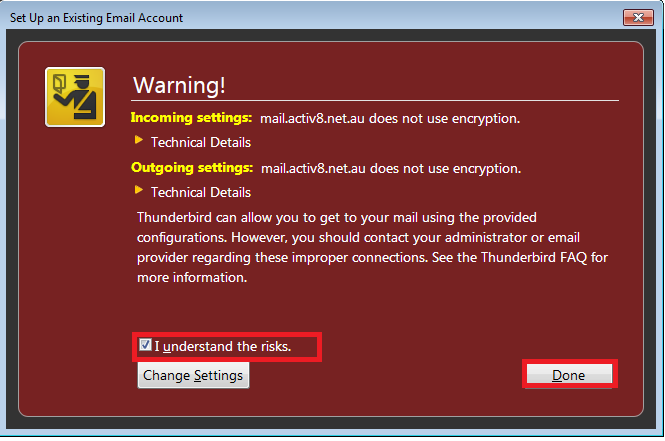
NOTE: You may receive a warning message POP-UP about the risks of connecting to our mail servers.
- Select the Checkbox to state that you understand the risks.
- Click “Done” to complete the setup
The Thunderbird E-Mail client is now configured and ready to be used.