
Email setup guide
Configuring Microsoft Outlook 2016
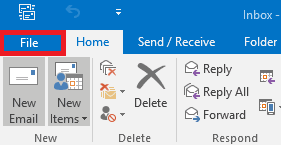
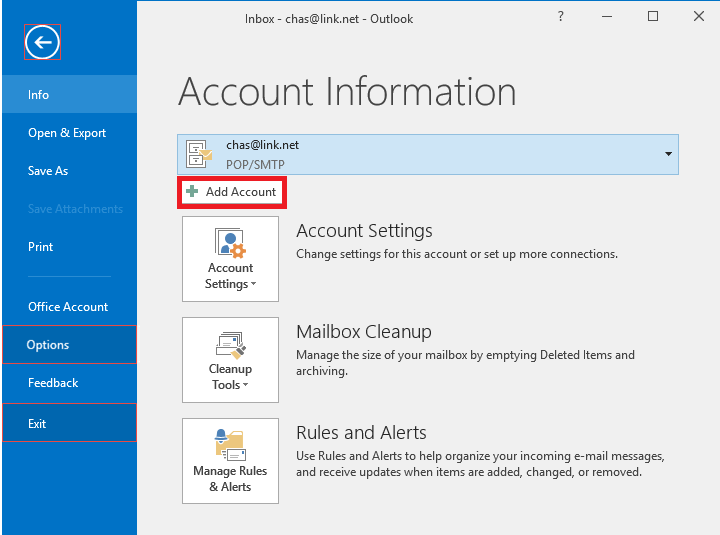
Step 1: Open Outlook 2016. If this is the first time you have opened Outlook you will be directed to the new account wizard. If you already have an account set up, click “File”, then select “Add account” and skip to Step 3.
Step 2: On the top left, click the “File” tab.
Step 3: Select “Add account”.
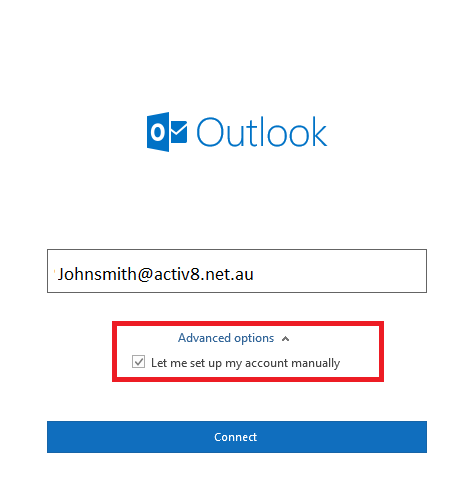
Step 4: Enter your E-mail Address.
Click on “Advanced options” and “check” the box to “Let me set up my account manually”
Click on “Connect”
Click on “Advanced options” and “check” the box to “Let me set up my account manually”
Click on “Connect”
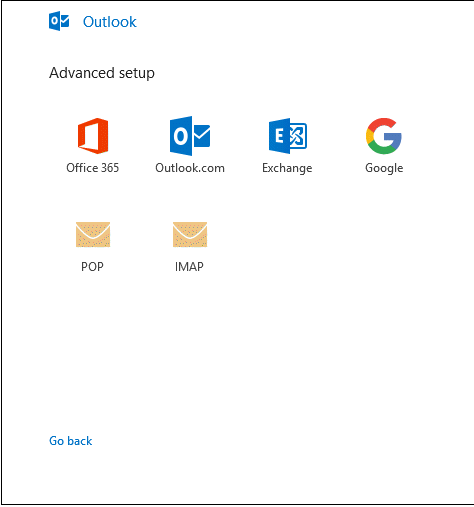
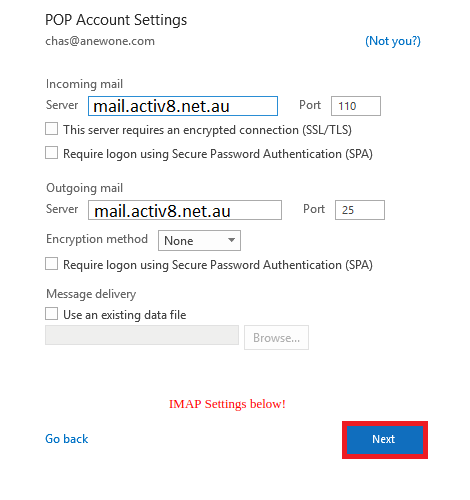
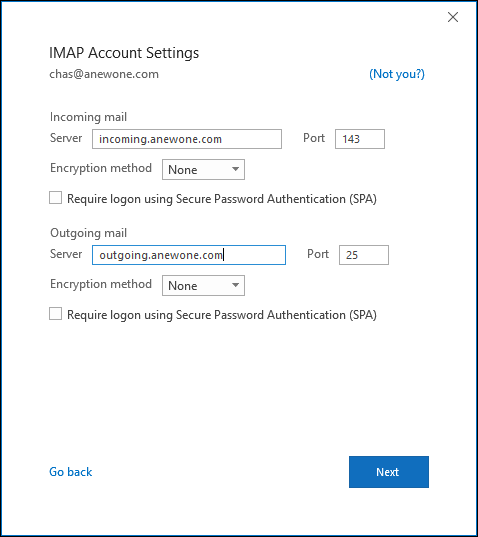
Step 5: Choose POP or IMAP (POP is recommended). And fill out form as described.
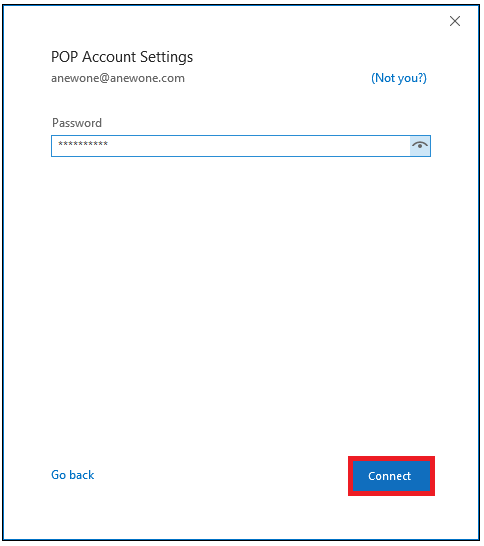
Step 6: Enter your password provided by activ8me and click “Connect”
Step 7: You will see a Confirmation if it was successfully set up.
Outlook 2016 is now configured to send and receive email through your mailbox.
Outlook 2016 is now configured to send and receive email through your mailbox.